Wiki › Controls
Controls
Every key can be changed in the settings (O), and a key may carry Shift, Ctrl or Alt (see Keys below). A controller works too: see With a controller.
Keyboard and mouse
- A / D, Space: move and jump. With wings, hold jump in the air to fly. Standing on an elevator block, Space (or W) rides up to the next one and S rides down (see Tools and elevators).
- Left click: use what is in your hand: swing a weapon, mine with a pickaxe, harvest ripe crops, take a back wall down with a Hammer. Pointing at a monster always attacks. Digging your own Home Stone asks first (Put it out or Keep it).
- Right click: place blocks (a solid block goes into lava or water too), put up back walls (hold the button and move to put up a row), hang paintings, till, plant, eat. With a bucket in hand, scoop or pour (see below). With a rod in hand, right click water to cast (see Fishing), and click when REEL! shows. On people it opens a menu (invite, trade, talk, challenge to a duel). On a Workbench, Furnace, Anvil or Trade Post it opens it. On an emberwork part it uses it, and with a Hammer in hand it turns a part that points. With a weapon that has a power, right click uses the power.
- 1 to 9: a slot of the first hotbar. Shift+1 to 9: a slot of the second. The third has no keys until you give it some. Whatever slot is picked, you hold what is in it. Mouse wheel: the next or the last slot of the bar you are on (see Hotbars).
- Esc: closes what is open, one thing at a time: a box you are typing in first, then a popup (a menu on a person, the emote picker, the minimap's key), then a window, then the chat box. With nothing open, it opens the game menu.
- F: talk to someone or use the station next to you. At a town gate, go in. At a mountain pass or a road gate of the Wild Road, take the road (it says where over it). By emberwork, F uses the part under the pointer, or else the part nearest you when nothing else F uses (a chest, a station, a door, a bed, a gate) is as near; with a Hammer in hand it turns a part that points. By a trial chest within two tiles, F opens it. F prefers things: when a station, a door, a chest, a bed, a gate or anything else F uses is near, F uses it, even with a person or a farm animal close by; it talks only when no such thing is nearer than the person.
- Talk (no key at first): give it a key in Settings (O) > Controls and it talks to the nearest person, shopkeeper or farm animal, while F leaves people alone and only uses things. Backspace or Delete on its row takes the key away again.
- I: character and bag. C: crafting. P: skill tree. G: group. N: friends. M: world map (in a town, the town map; see The world map). , (comma): the minimap small, large or extra large. - and = (or the mouse wheel over it): zoom the minimap out and in. Drag the minimap to look round; ◎ goes back to you. Tab: the land round you in a window over the game: tap it and it stays until Tab or Esc, hold it and it goes when you let go. Drag it, zoom with the wheel or − and +, ◎ goes back to you, and you keep walking under it (in a town or on a floor, hold Tab for the old whole-screen picture). B: bestiary. J: journal (quests, bounties, the Rift Ladder, Wick's lessons). H: events (the day's events, joining one, the raid's sign-up, Tobias's rewards, your region's weather). U: mail (see Mail). Y: achievements and titles (see Achievements and titles). L: guild. K: PvP on or off (open-world PvP is for the reborn: duels and the arena are for everyone). O: settings.
- Shift+K: put your name down for the arena, from anywhere (see Duels and the arena).
- R / V: drink your best healing potion / your best mana potion.
- X: call the mount you chose, or get off it (see Mounts). Out in the open world only.
- Q: drop what you hold (Shift+Q drops the whole stack). Something Rare or better asks first, Drop it or Keep it, and so does dragging it out of your bag; Escape or a click anywhere else keeps it.
- E: switch an area pick between its whole area and one block at a time (the mark over the hotbar says which).
- Enter: chat. The tabs (All, Group, Guild, System) sort what you read, and you talk to the tab you are on. In All you talk to the people near you (a chat setting):
/alltalks to everyone,/nto the people near you from any tab,/g(or/group) to your group,/gu(or/guild) to your guild,/w name messagewhispers./yieldgives up a duel./meacts something out,/wave,/bow,/danceand the other emotes are seen by the people near you,<3shows as a heart and the smiling face by the chat box picks icons for you: see Chat and emotes.
The game menu
Press Esc with nothing open (on a phone: the menu button, then Log out or Change character).
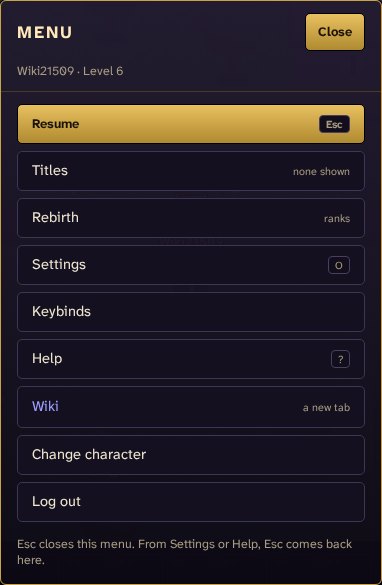
- Resume closes it (so does Esc).
- Settings and Keybinds open the settings, Keybinds at Controls and its keys; Help opens the help. Esc in either brings you back to the menu.
- Wiki opens this wiki in a new tab.
- Continue the tutorial (when you skipped it) picks it up at the steps you have not done: see Getting started.
- Windows: a row of every window (bag, crafting, journal, world map, skill tree, group, guild, bestiary, trading, friends, mail, achievements), with its key. A controller reaches them all from here.
- Change character goes to your characters, to pick another or make a new one.
- Log out asks first, and says whether you will rest: logging out inside a town's walls (through a town gate) lets you wake up rested, with double experience from the Grown until it runs out. Then you are back at the sign-in screen.
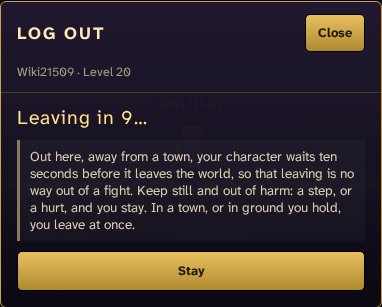
- Leaving out in the open. In a town (inside its walls or on its ground) or in ground you hold, Log out and Change character let your character go at once. Anywhere else it waits ten seconds before it leaves the world, so that leaving is no way out of a fight: the menu counts down (Leaving in 10...), and a step or a hurt keeps you in the game (so does Stay, or Esc). When the count ends your character leaves at once. If your connection drops instead, your character stays where it stands for a minute, and can still be hurt.
Hotbars
- There are three hotbars of nine slots. The first is the one you always had (1 to 9), the second answers to Shift+1 to 9, and the third to whatever keys you give it.
- Settings (O) > Interface > Hotbars shown chooses how many show: 1, 2 (to start with) or 3, stacked with the first at the bottom. With one shown, the row turns to the bar you pick, and the BAR button at its end turns to the next.
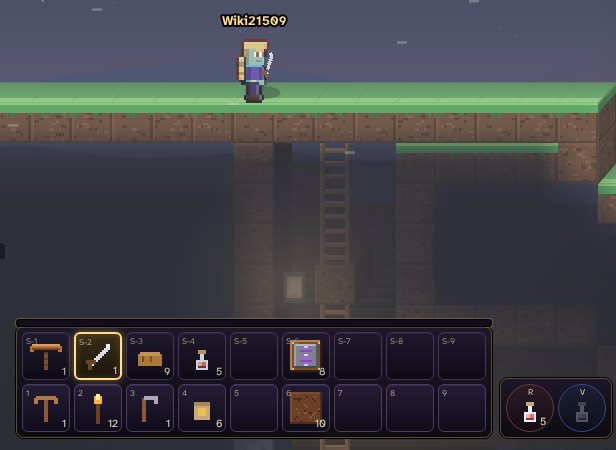
- Putting things on them: drag a thing from the bag onto a slot, on the bag's own three rows or on the hotbar itself where the window does not cover it. Drag a slot onto another to swap them, or back into the bag to empty it.
- Moving them round, the bag closed: drag a slot of the hotbars at the bottom of the screen onto another, on the same bar or another one on show, and the two swap; drag it off the bars and let go over the world, and the slot empties (the thing stays in your bag; nothing is dropped). It works with a finger too. A click or a tap without moving still picks the slot. Right click a slot to empty it. A thing sits in one slot at a time: put it somewhere else and it leaves its old slot. New things you pick up still drop into free slots of the first bar.
- Double click a thing in the bag: it goes into the slot you have picked (on whichever bar) and into your hand. Food and potions too: drink or eat them with a right click while you hold them, or with the bag's own Drink, Eat and Read it buttons. What you wear is still put on, a lost page still read, an egg, a box or a mount scroll still used at once, a treasure map read, the Delver's stake planted, and a spell or a wand opens the wand window. A wing dye goes to the slot too: the bag's Dye your wings button (or a right click while you hold it) uses it.
- On a phone one bar shows, and the BAR button at its end turns to the next of the three.
- The bars are kept with your character on the server, the first as it always was.
Keys
- Settings (O) > Controls lists every key. The Hotbar keys at the top show the 27 slots, three bars of nine; the list under them has everything else.
- To change one: click it, then press the key you want. Hold Shift, Ctrl or Alt with it to make it part of the key (Shift+B is not B). Pressing Shift, Ctrl or Alt alone waits for the key that goes with it. Esc stops without changing anything.
- A key another action had moves to the new one, and the settings say which lost it. A key with Shift, Ctrl or Alt goes to the action that has exactly that; when none has, the key alone counts, so you still walk with Shift held, and Shift+Q still drops a whole stack.
- Ctrl+1 to 9 (and Ctrl+W, Ctrl+T, Ctrl+N, Ctrl+Q) belong to the browser in most browsers, which may never pass them on, and some browsers take Alt+1 to 9 for their tabs too: the settings warn you. Shift is the safest.
- Reset keys puts every key back, the hotbar keys too. Your keys are kept with your account: they stay the same after an update, in another browser and on another computer, as soon as you log in. Keys you set before this came in still work, and go to your account the next time you play.
The bag
- A click on a thing picks it and opens a small menu right where you clicked, with what you can do with it: Drink, Eat, Read it, Wear, Take off, Open it, Hatch it, Plant it here, To slot N, Lock and the rest. A right click opens the same menu. The same buttons sit in a row above the bag, under the search box. A double click still puts the thing into your picked hotbar slot.
- Its order is your own: the order you sort or drag your bag into is kept for each character, so another character on the same computer keeps theirs.
- Locking a thing: pick it in the bag and press 🔒 Lock. A padlock shows on it, and it is never sold, dropped, listed on the Market, offered in a trade, sent by mail or given to a town's order until you 🔓 Unlock it. A chest or the vault still takes it. The lock stays with the kind, so a copy you find later is locked too.
- Searching it: type in the box at the top of the bag. Each word must match the thing's name, its kind (Pickaxe, Potion, Block...), its rarity (Common to Legendary) or what it gives (double jump, move speed, life...). What does not match grows dim, in its place (you can still drag it), and the box says how many match. × or Esc empties it.
- The bag and every other window stay where you scrolled them, and keep the box you were typing in, while your life or your bag changes.
Lava, water and buckets
- Building into lava or water: hold a solid block (stone, dirt, planks, glass, brick...) and right click a tile of lava or water: the block takes its place. Lava and water count as something to build against, so you can fill a lake from its middle. Torches, doors, furniture, stations, gates and defences never go in.
- Scooping: hold an empty Bucket and right click water or lava within reach: you hold a Water bucket or a Lava bucket, in the same hotbar slot.
- Pouring: hold a full bucket and right click open air, a plant or a fire. Water on lava, or lava on water, makes basalt. A square under the pointer shows where the bucket would scoop or pour.
- See Fire and fluids for where a bucket will not, and what burns.
Emberwork
- Putting a part down: hold it and right click, as with a block. Ember dust lays emberwire. A part that points (a relay, a grey latch, a toggle stone, a ram, a spout, an item chute, a chest gauge) points away from you; the ghost under the pointer shows which way.
- Using a part: right click it, or press F by it: pull a lever or a pull-cord; give a heartbeat stone its next beat, a relay its next delay, a chime its next note (those only where you may build). On someone else's ground you use a part only in plain sight, never through a wall.
- Turning a part: hold a Hammer and right click a part that points (or press F by it): a quarter turn clockwise. A ram turns only while its head is in. The Hammer's left click still takes back walls down.
- Linking lift stones: right click one lift stone (or F by it), then another within a minute. To ride, stand on one and warm it: a pressure plate on the stone does it as you step on, and three seconds later you step off at the other.
- A spout: right click it with something in hand to put in as many as fit; right click it with anything else (or an empty hand) to take all of it back. F by it does the same.
- Hover a part to read it: what it is, how warm it is, its setting, where it points and what a right click does. A spout says what it holds, a gauge how warm it is, a chute whether it is moving.
- See Emberwork.
Wick and trial chests
- Wick, on Aldhearth's crafters' lane: click him, or walk up and press F, for his menu: Talk, Wick's lessons, Ember dust and parts (his window, with a Buy button for each) and Trial vaults (how they work).
- Putting a trial chest down: hold it and right click on your own Home's land (nowhere else).
- Opening a trial chest: right click it, or press F within two tiles of it. Anyone but its owner has to be within 2.5 tiles, with nothing solid between.
- Its window, if it is yours: click something in your bag to put it in the prize (a number in How many to move moves that many; empty moves the whole stack), click something in the prize to take it back, Put gold in and Take gold out; under One share, − and + for each thing and Gold a share with Set; Take the chest down at the bottom.
- Its window, if it is someone else's: Take your share.
- See Wick the Tinker and trial vaults.
Your Home
- Setting one down: dig down, hold a Land deed and point at a spot within reach: its land shows green where it can go and red where it cannot, with the reason over it. Right click, then Set it down. See Homes and land.
- Widening its land: hold an ember core (or chapter III's Founding Ember) and right click your Home Stone.
- The Home Stone itself: the map (M) lists your Home under Your Homes, with Friends may build, Give it up (click twice) and, while it is lit, Go Home to travel there. Dig the stone with a pickaxe to put it out (it asks first).
- Iron gate: right click it to open or shut it. On your own gate the menu also has Who may open it....
- Ballista: right click it with ballista bolts in your bag: it takes as many as it holds (60 at most), and with none it tells you how many it has.
- Alarm bell: right click it to hear how the Home stands.
- Hand bell: hold it and right click on your land to call the next raid now.
- Raid chest: right click it to take your share.
- Armor stand, weapon rack, aquarium, trophy mount: hold what goes there and right click to put it on; right click with anything else (or an empty hand) to take back what you put there. A pickaxe still digs them.
- Home raids and the defences are in Home raids and defence, the pieces in Home life.
On a phone
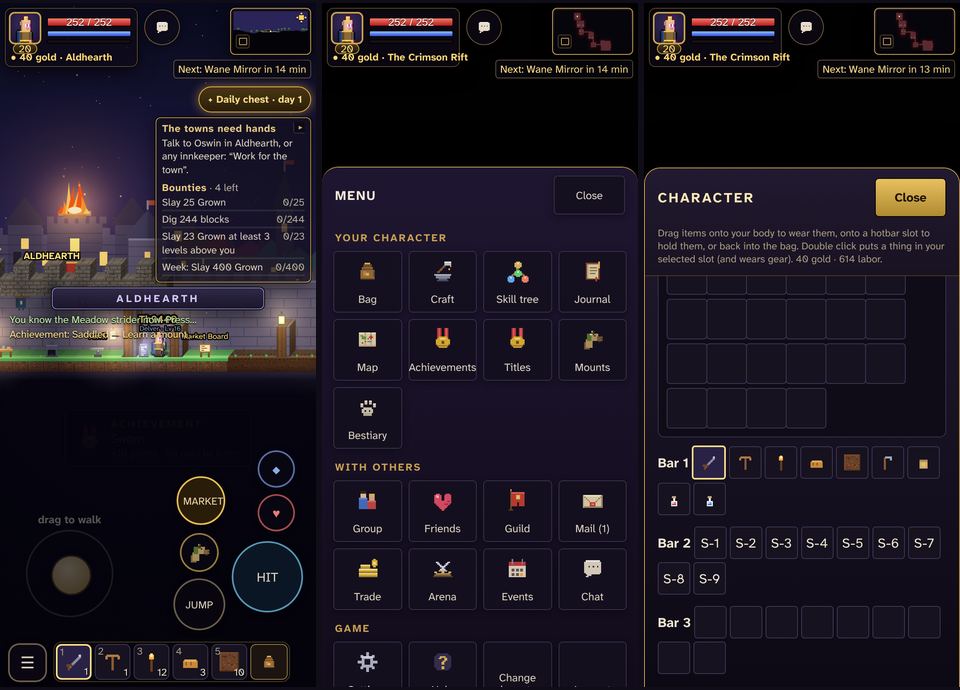
- Drag anywhere in the lower left to walk. Up climbs ladders and goes through gates and doors; down climbs down.
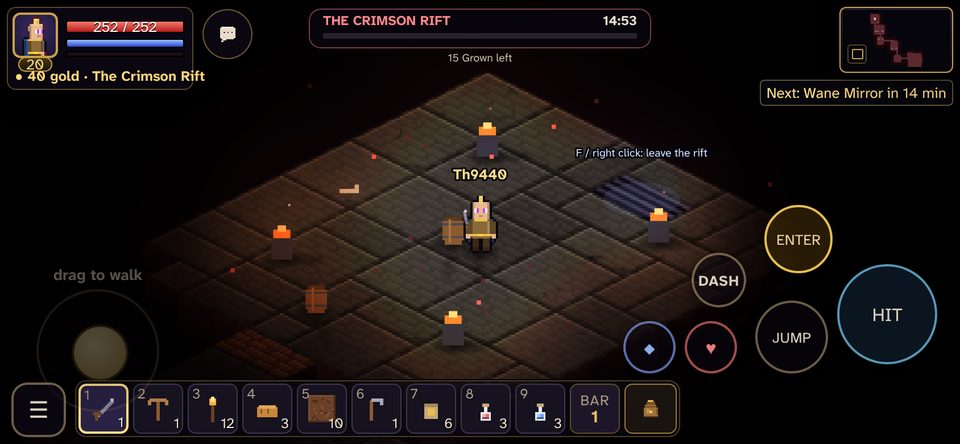
- Action does what fits what you hold: hit, dig the block in front of you (tilt the stick to dig up or down), place a block, eat or drink. With a rod it reads CAST, then REEL when a fish bites (a tap on the water does the same). With a bucket it reads SCOOP or POUR and uses the tile in front of you (tilt the stick for the one above or below); with nothing there for the bucket it does nothing. Action never uses an emberwork part.
- Use appears when there is something to use: a station, a person, a gate. On your Home's land it says LOAD (a ballista), DOOR (an iron gate), BELL (an alarm bell), OPEN (a raid chest), PUT ON (an armor stand, rack, aquarium or trophy mount, with what goes there in hand) or TAKE (one that shows something). By emberwork it says PULL (a lever or a pull-cord), SET (a part with a setting), LINK (a lift stone), PUT IN or TAKE (a spout), or TURN with a Hammer in hand; by a trial chest, OPEN. It takes the part in front of you first.
- A tap on a ballista, an iron gate, an alarm bell, a raid chest or a piece that shows things uses it, as a right click does, and so does a tap on a lever, a pull-cord, a heartbeat stone, a relay, a latch, a toggle stone, a chime, a lift stone, a spout or a trial chest. It never digs them, nor a ram, an item chute or a chest gauge. With a Hammer in hand, a tap turns a part that points (a relay, a latch, a toggle stone, a ram, a spout, an item chute, a chest gauge). Action with nothing to hit does the same for a piece that shows things.
- A tap on the world with a block in hand puts it there, if it can go there; with a bucket it scoops or pours there, where the bucket can; anything else digs.
- A Land deed: hold it and tap the spot under the ground: if the Home Stone cannot go there you are told why, otherwise Set it down.
- The round button with a mount on it (once you have one) calls it, or gets you off.
- The bag sits on the hotbar; the chat bubble shows how many new lines there are; tap the minimap to open the map.
- One hotbar shows on a phone: the BAR button by its slots turns to the next of the three (with the two-thumb layout, held sideways). The menu button holds Change character and Log out too.
- Two thumbs. With Settings › Interface › Phone layout › Two-thumb layout (on to begin with), Action is the big button under your right thumb, and Jump, Use, the potions and your mount (on a dungeon or rift floor, Dash) each have their one place round it. The menu button sits at the bottom left, beside the hotbar. Held upright the hotbar shows five slots (four on the narrowest phones) and the bag; turn the phone for all nine. Turn the setting off for the older layout.
- The menu is a sheet of the game's own icons in three groups: your character, with others, and the game. Windows open as sheets, from the bottom when you hold the phone upright and from the right when you hold it sideways, so your life and the world stay in sight, with Close at the top. No text is smaller than 12 px.
With a controller
Any controller the browser knows works: an Xbox controller, a PlayStation one (DualShock or DualSense), a Nintendo Pro controller, and most others. Plug it in (or pair it) and press one of its buttons: a note says it is connected, and from then on the game names its buttons wherever it named keys, in the controller's own symbols (✕ ○ □ △ on a PlayStation one). Touch the keyboard or move the mouse and the keys come back, and the other way round, as you please.
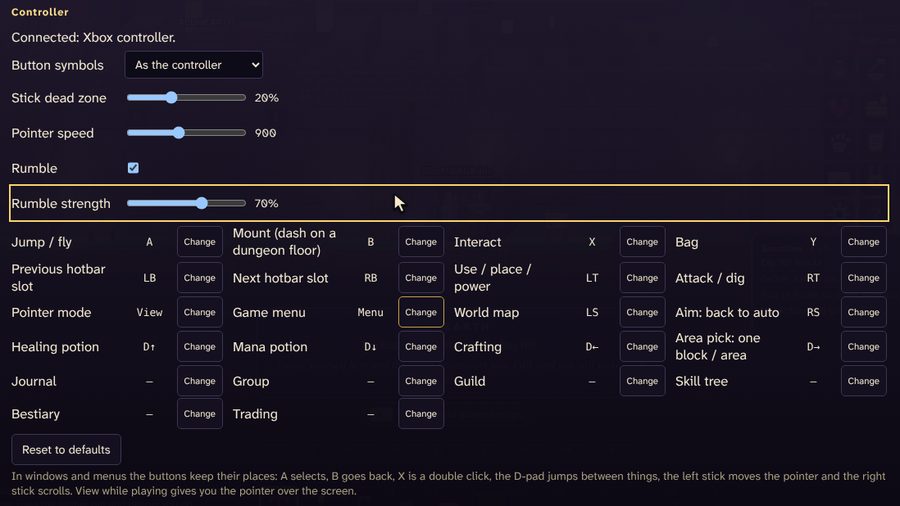
Playing (Xbox names; a PlayStation controller has the same buttons in the same places):
- Left stick: walk. Up goes through gates and doors and climbs; down climbs down and digs down.
- Right stick: aim. A reticle comes up around you, nearer or farther as you push; let go and it stays a moment, then aiming is automatic again: a swing goes to the nearest Grown, a pickaxe digs the block in front of you (push the left stick up or down to dig up or down). RS (press the stick) ends the aim at once.
- RT: attack or dig, as the left mouse button. LT: use what you hold, as the right mouse button: place a block in front of you (held: one after another), eat, drink, or a weapon's power at the nearest Grown.
- A: jump (held: fly). B: call your mount (on a dungeon floor: dash). X: talk, or use the station by you. Y: your bag.
- LB / RB: the slot before and after on the hotbar.
- D-pad: up a healing potion, down a mana potion, left crafting, right an area pick's one block or whole area.
- LS (press the stick): the world map. Menu: the game menu. View: the pointer over the screen, to click a toast or a button on the HUD (B or View again to play).
In a window or a menu a pointer comes up. The left stick moves it, and let go near a button or a slot it lands on it; the D-pad jumps to the next one that way; the right stick scrolls. A is a click (held and moved: a drag, say from the bag to the hotbar), X a double click, B back, Y the bag, LB / RB the window's tabs, Menu closes the windows. These keep their places whatever you change for playing. The game menu has a row of every window, so the controller reaches all of them. The Warden check takes the pointer too.
Settings (O) > Controller: what each button does, and Change to give an action another button (press it; the action that had it takes this one's old button), Reset to defaults, the button symbols (as the controller, or Xbox, PlayStation or Nintendo), the stick's dead zone, the pointer's speed, and the rumble (a hit, a hurt, a level, the Forge) and its strength. Kept in this browser.
The screen
Nothing on the screen covers anything else. What comes and goes, a letter, an achievement, a title to take, takes its turn: the tutorial card, the quest tracker or a waystone's plaque under it steps aside until it has gone. On a narrow window the tutorial card narrows to fit between your portrait and the map, and the chat stops short of the hotbar. Your group's frame sits a little below your portrait, life and mana. On a phone the tutorial card shows its step and goal (tap it for the story), and the quest tracker keeps out of the way while the card is up.
The window buttons under the minimap fold into one row: Bag, Crafting, Skill tree, Map and Journal, and a ⋯ button. ⋯ opens the drawer with every other window (group, friends, trading, the bestiary, events, the guild, mail, achievements, the arena, mounts, settings and help) under the row; a second press, a click anywhere else or a window picked from it closes it. A red dot on ⋯ means a button in the drawer has news (a letter, a friend's request, PvP on). Rather have them all out? Settings (O) > Interface > Window buttons: All of them. The keys open every window either way. On a window narrower than 1100 pixels the row is two rows of three.
Settings
Settings (O) has a list of sections on its left (on a phone, a row of tabs over the section), and shows one at a time:
| Section | What is in it | |
|---|---|---|
| Controls | every key, the hotbar keys, the Talk key, Reset keys | |
| Controller | what each button does, the dead zone, the pointer's speed, the rumble | |
| Sound | sound on or off, effects and music | |
| Graphics | 2.5D depth, isometric towns, resolution, blood and effects, [[effects | Effects]], weather effects, monster names |
| Interface | interface and text size, the HUD layout, the text face, hotbars shown, the [[cursor | cursor]], the window buttons, the quest tracker, chat, the phone layout, moving windows |
| Game | the language, the tutorial, Change character, Log out |
It opens at the section you looked at last.
In a dungeon
The dungeon box sits at the top of the screen (above the buttons on a phone). The small arrow in its title folds it to one line: the dungeon's name, the time left and Leave. It stays folded until you open it again, in this browser, and on a phone it starts folded.
On a rift or crypt floor
The view turns isometric. W A S D walk, Space jumps, Shift dashes, left click swings (at the pointer), right click uses a weapon's power, or the stairs out. While a Grown is near, your reach lies on the floor where you aim, and a gold ring marks every Grown your swing would hit. Point at a Grown's body to aim at it.
Inside a town
The view turns top-down. Walk with the keys or click where you want to go; click a person or a station to walk up to it and use it. Leave by the south gate.
The cursor
Settings (O) > Interface > Cursor sets your pointer's style (an arrow, a cross, a dot, a circle, Auto or your computer's own), its size and thickness, its colour, and the box round the block you place or dig. See The cursor and the block highlight.
Effects
Settings (O) > Graphics > Effects sets how much the game moves and shines: its quality (Off, Low, Normal or High), the screen shake, the hit pause (a tiny pause of the picture at a hard hit), the flashes (Full, Soft or Off), the size of damage numbers, the small life of the world, the beams over rare drops and a switch that lets the game lower effects by itself when it runs slowly. A phone starts on Low. See Effects and animation, and the limits that never change.
Text, weather and the ping on the screen
- Settings (O) > Interface > Interface size: 90%, 100%, 115% or 130%: the HUD and every window, larger or smaller. Text size (Normal, Large, Larger) makes the chat, the tracker and the tooltips larger again. Both are kept in this browser.
- Settings (O) > Interface > Text: Clear (to start with) writes everything small, every number and every chat line, in a face made to be easy to read, that tells 2 from 8, 0 from O and 1 from l at any size. Pixel brings back the old pixel letters. It changes at once and is kept in this browser.
- Settings (O) > Graphics > Resolution: Sharp draws as many pixels as a sharp screen has (up to two for each point of the screen each way); Fast draws one for each point, a quarter as many, which a weaker computer runs much more smoothly, and the pixel-art world looks the same. Auto, the default, is Sharp until the game runs slow for a while; then it changes to Fast for the rest of your visit and says so once in the chat. It makes no difference on an ordinary screen.
- Settings (O) > Graphics > Weather effects: on, fog, blown sand and ash lay a light veil over the view, rain and snow fall and a storm flashes now and then; off, none of it is drawn. The weather icon, the forecast and what the weather does (to fishing and to crops) stay either way.
- News for everyone (a rift, an event, a boss slain) comes as a small card under your portrait (at the bottom on a phone) for six seconds; click it to put it away.
- Your ping is the small number in the lower right corner of the minimap: green is smooth (under 120 ms), yellow a little late (under 250), red high. Point at it to see how steady it is, and what the server measures. In the classic HUD the ping by your gold takes the same colour; on a phone it shows when the calm phone layout is off.
- Smooth play. Everyone else is drawn a moment behind, between two places the server told the game, so they move smoothly. When the connection or the server hiccups, they carry on walking for up to a third of a second and then slide back to where the server has them, instead of freezing and jumping. A Grown is sent to the game well before it reaches the edge of your screen and fades in when it is first drawn (underground only once you could see it); one that blinks leaves a trail of after-images. Loot the server is pulling to you goes into your bag the moment it reaches you. Your blows land at once: when your swing reaches a Grown, it flashes, flinches and is shoved back the moment you swing, on the land and on a dungeon's, rift's or event's floor, whatever your ping; the number and the life it takes follow when the server answers (a crit grows over the plain blow then). Blocks you dig or put down, and your own arrows, show at once too. The server still decides everything: where a Grown is, whether a blow lands and what is yours.